Teams
Team up, design a banner, share a vault and a home, and show your team next to your name.
/team
If you're in a team it opens your roster. If not, you get a landing screen to create one, see pending invitations, or browse public teams.
From the roster you reach your team home, the vault, and (owner only) Team settings, where banner, home and recruiting all live.
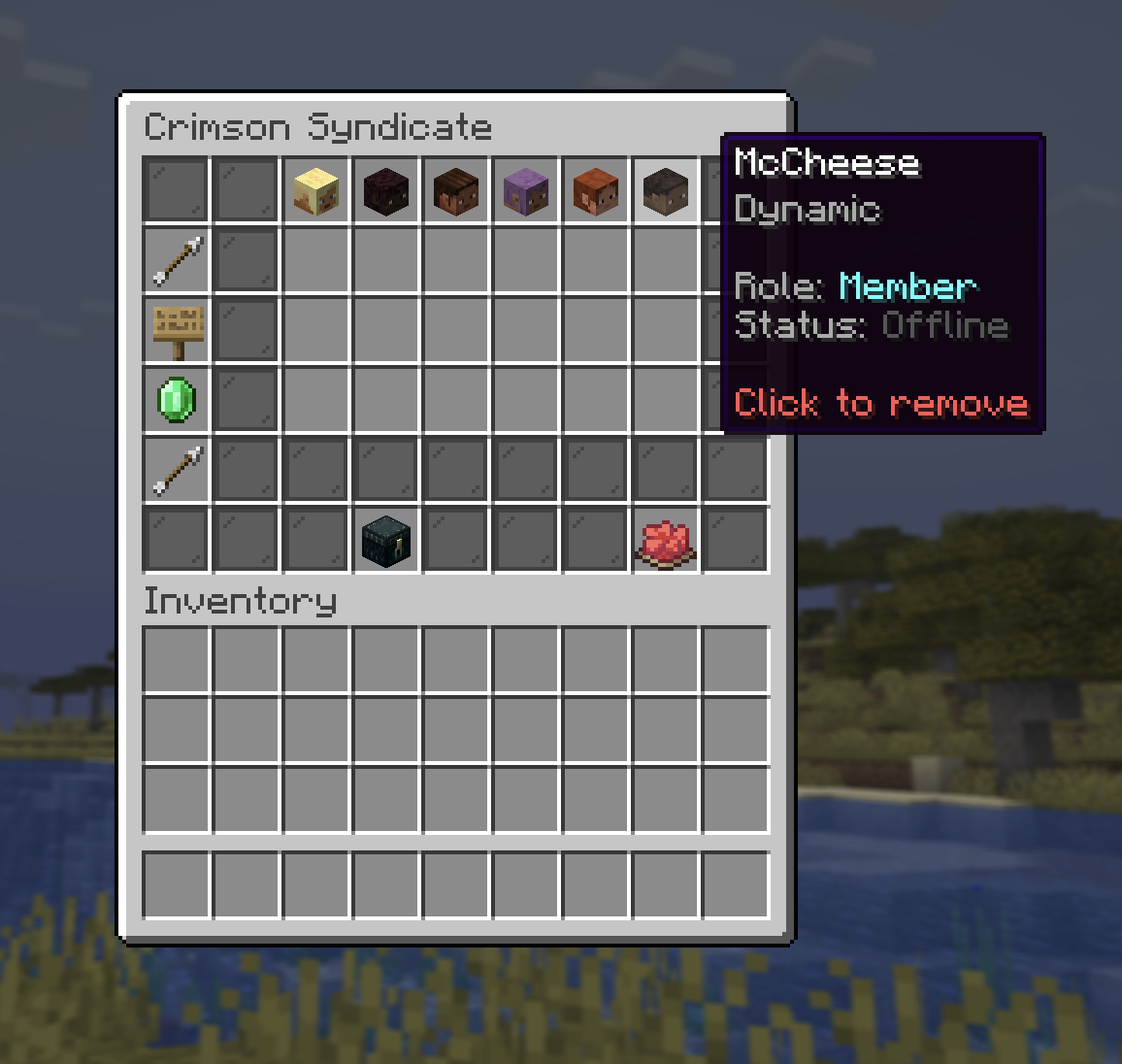
Being on a team does not stop PvP between members, team-kill is legal. Teams track membership and share a vault, nothing more. Trust your teammates.
Creating & managing
| Action | Who |
|---|---|
| Create (name up to 24 characters) | Anyone not already in a team |
| Invite a player | Owner |
| Accept an invite | Invited player |
| Leave | Any member |
| Remove a member | Owner (with confirmation) |
| Disband | Owner |
Inviting respects the target's Invites privacy setting, and you can't invite past the member limit.
Leaving a team, or being removed from one, blocks joining any team (not just the one you left) for 2 hours.
When the owner disbands the team, the shared vault is destroyed. Empty it first.
Member limit
The limit is set by the highest rank among all members:
| Best member rank | Max members |
|---|---|
| No rank | 12 |
+ | 24 |
++ | 48 |
+++ / media | 96 |
Shared vault
Your team has a shared vault (up to 96 slots), split into tiers that unlock as the team's rank climbs. Locked tiers show as colored panes and simply become accessible again if the rank goes up, nothing inside is lost.
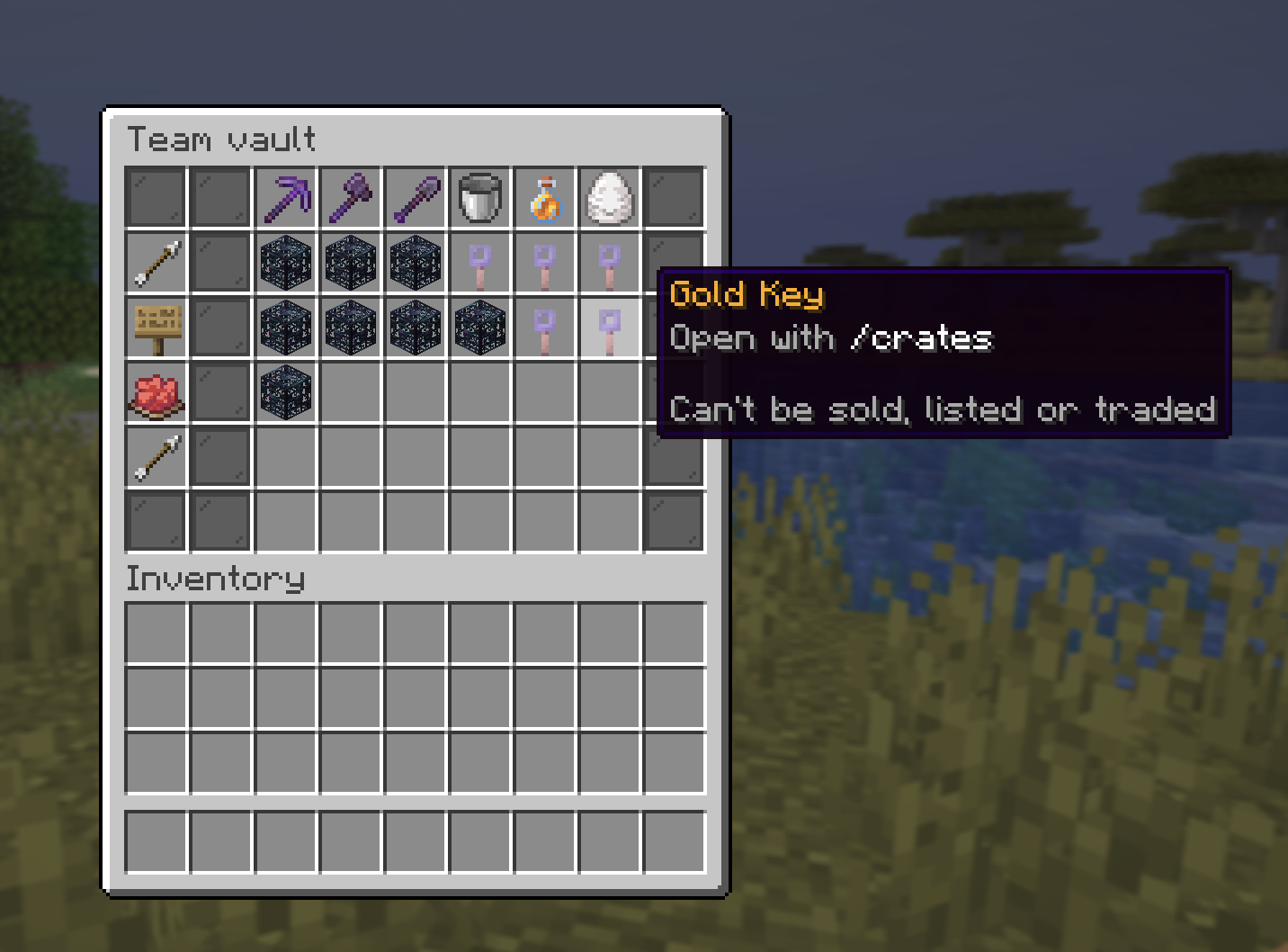
The 3-day Amethyst self-destruct still applies to items left in a team vault.
Team settings
Everything the owner manages lives on one screen. Open it from the roster:
Roster → Team settings
From here the owner sets or removes the team home, designs the banner, and opens the team up for recruiting. Members don't see this button.
Team banner
The owner can design a custom banner from Team settings, no crafting table needed. Pick a base colour, pick a layer colour, add up to 6 patterns on top, undo or clear as you go, then save. Your team's banner shows up full-size above your head in the world, and as the icon everywhere the team is listed (browse teams, leaderboard).
Roster → Team settings → Team banner
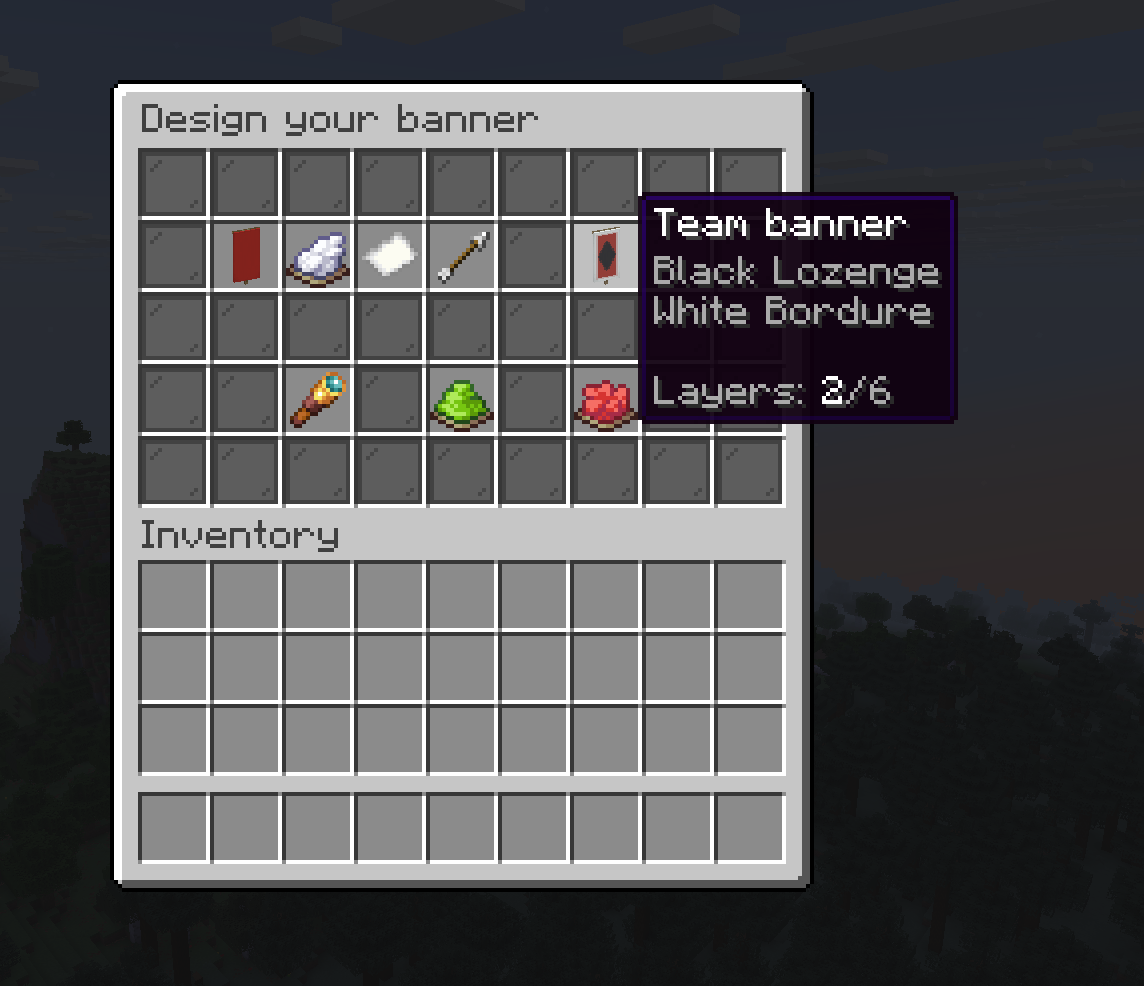
Hit Preview to close the menu and see your unsaved design at full size right in front of you. Sneak to come back to the editor with your work still there.
Only the owner can edit the banner. A saved banner appears above every online member's head right away, no need to relog.
Once your team has a banner, any member can buy it as a real item from the shop under Colored & Glass, priced at 10× a plain banner. Fly it on a wall, a pole, wherever you like.
Team chat
Talk to your team only, wherever they are on the server:
/tc <message>
Team home
The owner can set one shared home for the team, shown as a bed on the roster (just
like /homes). Any member can teleport to it (same 5-second warmup as a personal
/home, and you can't be in combat).
| Action | Who | Where |
|---|---|---|
| Save the team home (at your current location) | Owner | Team settings |
| Delete the team home (with confirmation) | Owner | Team settings |
| Teleport to the team home | Any member | Roster (the bed) |
Public teams & recruiting
Turn Recruiting on in Team settings so teamless players can find your team in
Browse teams and ask to join instead of waiting for an invite. This only controls
who can find and request to join, it doesn't hide the team from the /lb leaderboard
or the weekly Discord award, every team shows there regardless.
Landing → Browse teams
- Recruiting is an owner-only toggle (closed by default).
- A recruiting team shows its banner, member count and owner to anyone browsing.
- Who can request narrows who may even send a request: Everyone, Circle (friends, players you follow, and current teammates), or Nobody.
- While recruiting is open, a Review requests button sits on the roster next to the vault (even with nobody waiting, it just opens empty). The owner accepts or declines each request there.
Team leaderboard
Teams share the /lb board: cycle the View button to Teams for the same
Money, Shards, Kills, Deaths, K/D, Playtime, Level boards as the player
leaderboard, all-time or this week, just added up across your team. See
Stats & Leaderboards for the full picture.
Team of the week
The team-board categories award weekly crate keys too, same as players, one per member of a top-3 team (see Progression). The team that tops Kills also gets a 🏆 badge on its roster for the following week.